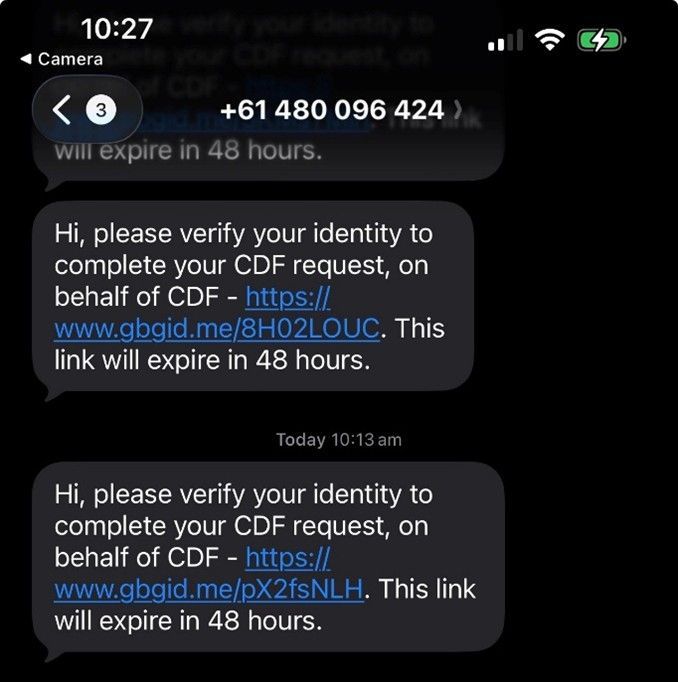
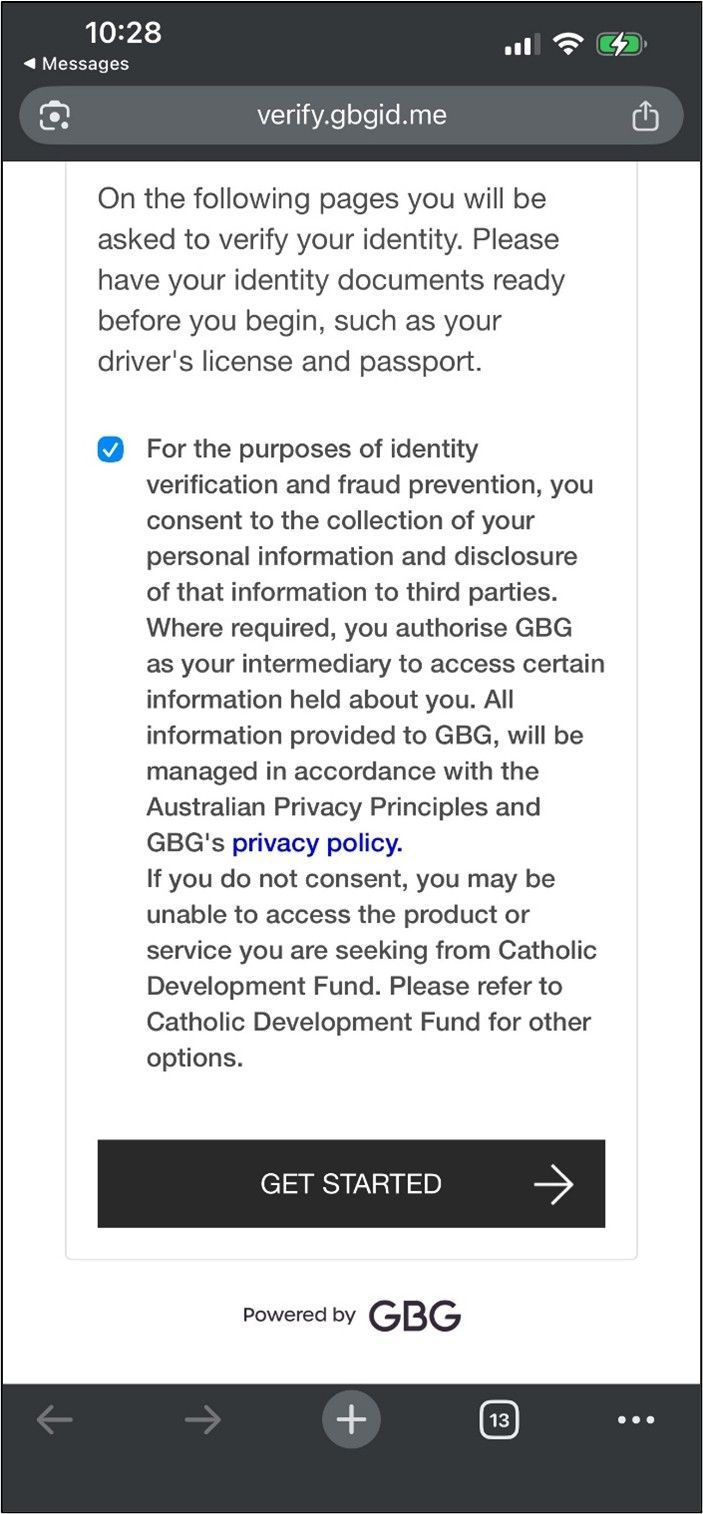
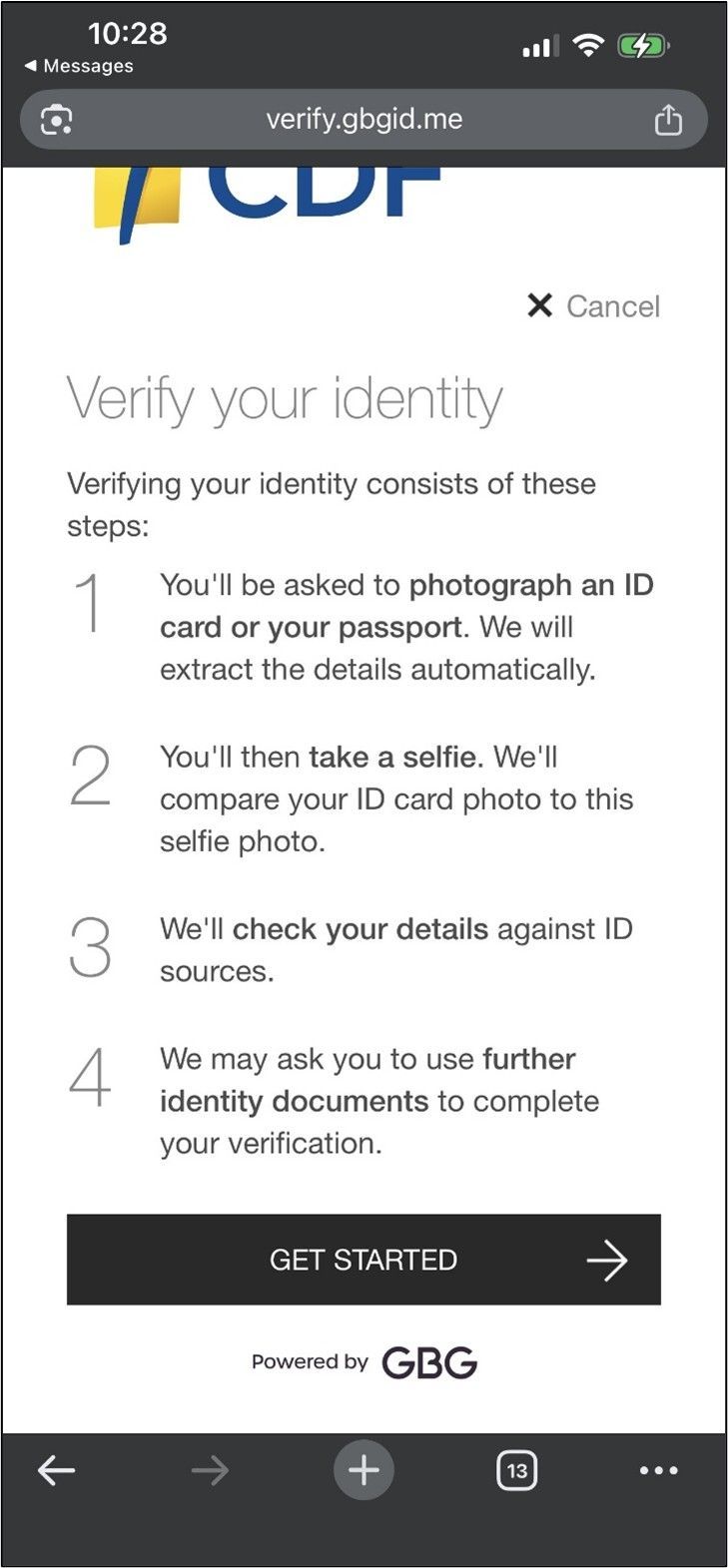
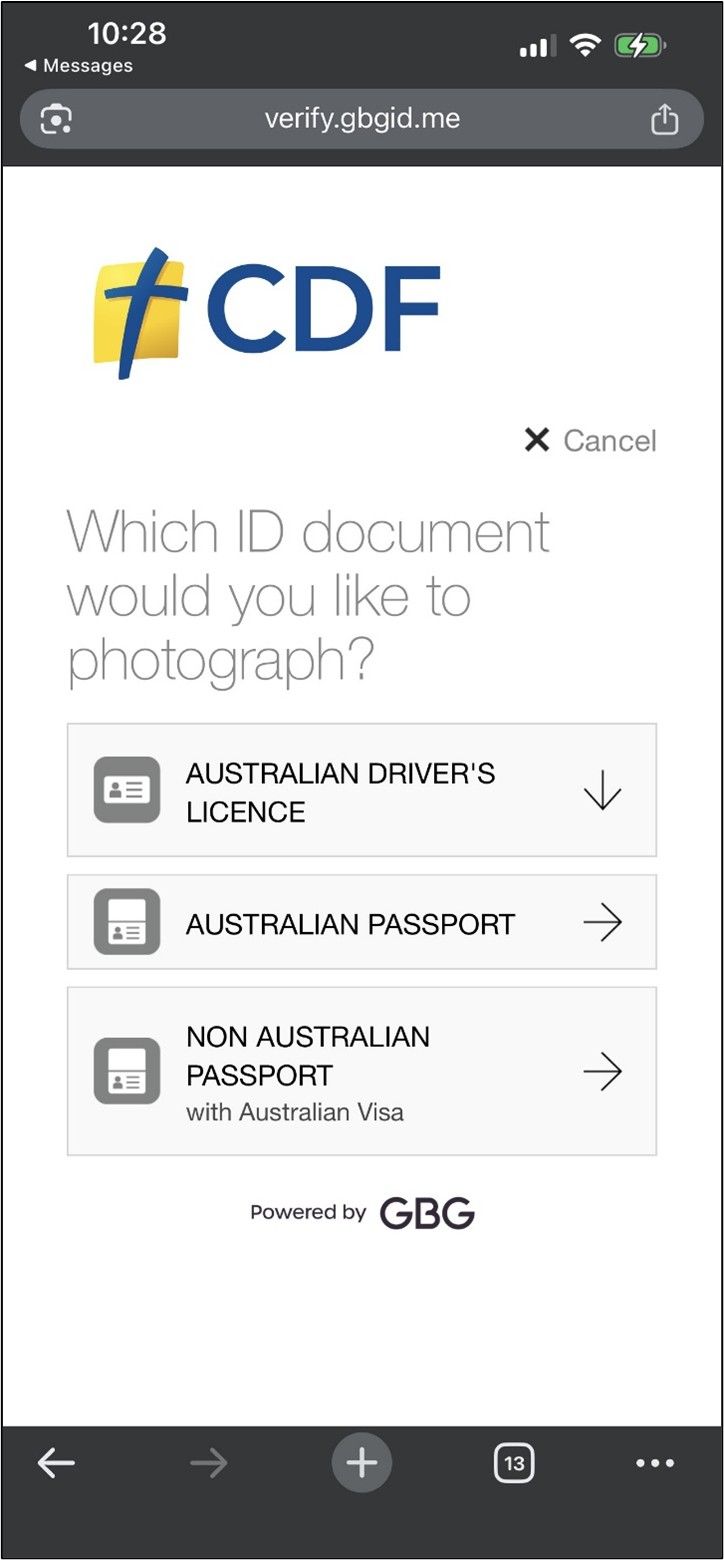
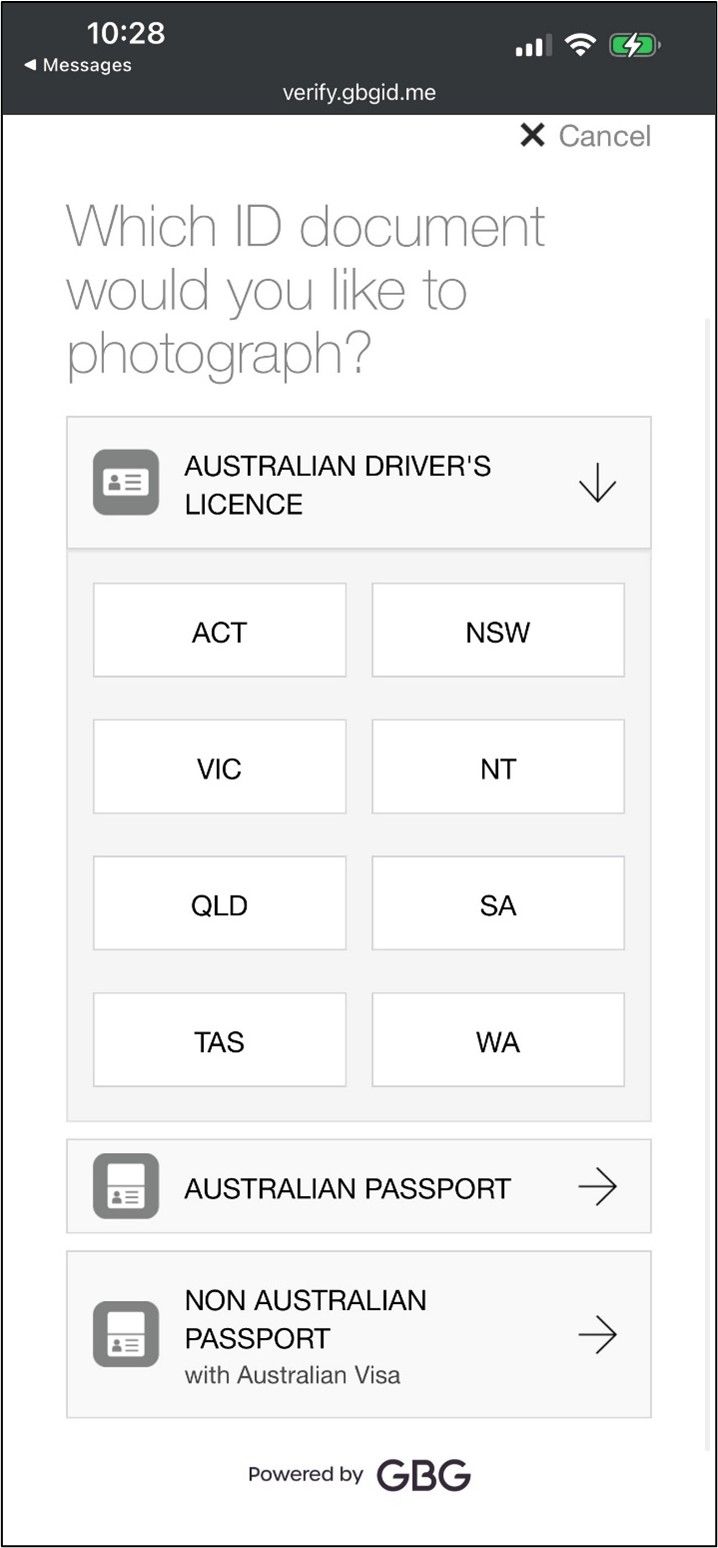
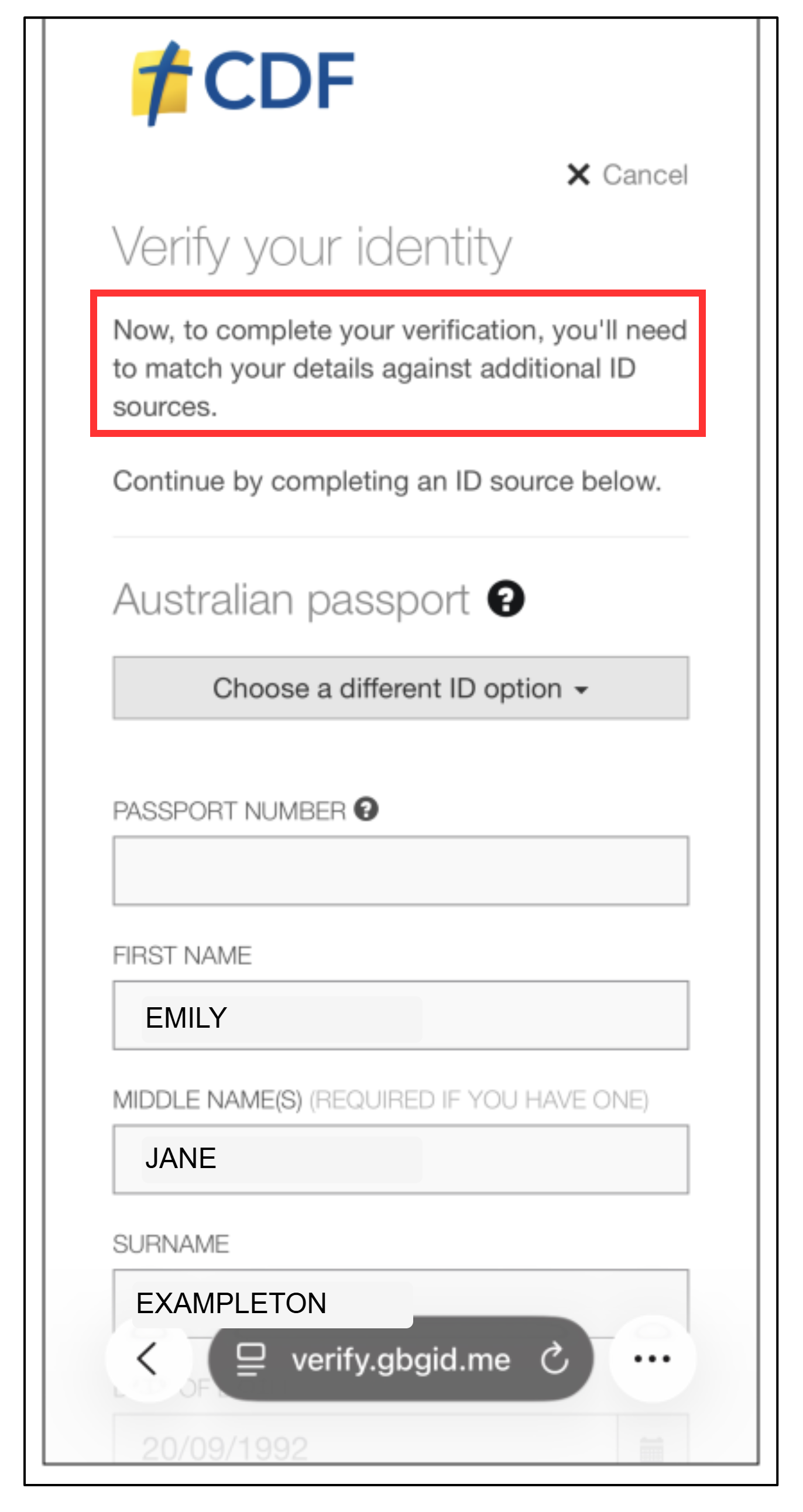
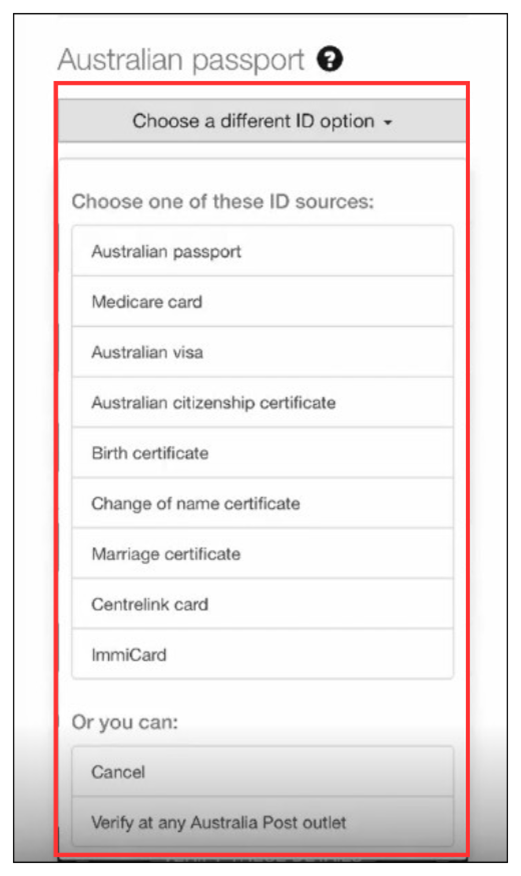
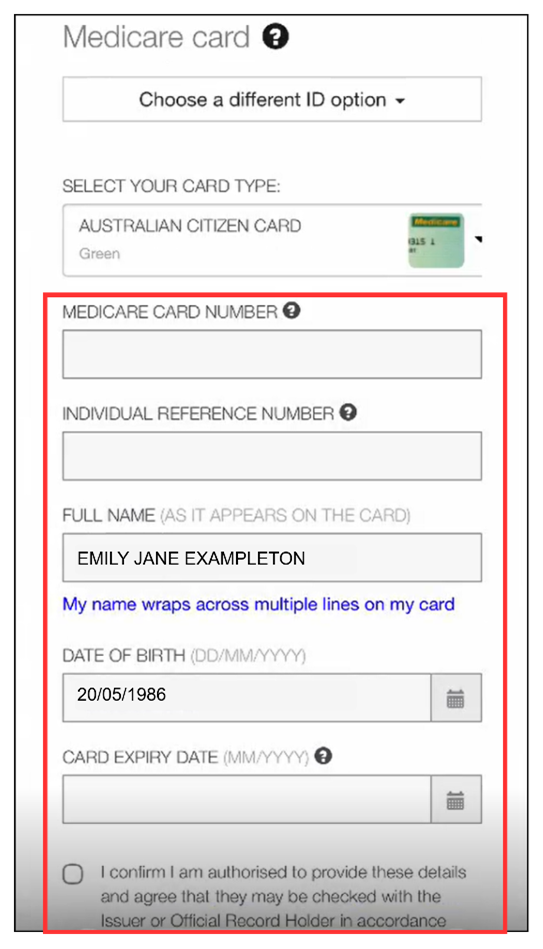
Touch the type of photo ID you want to use
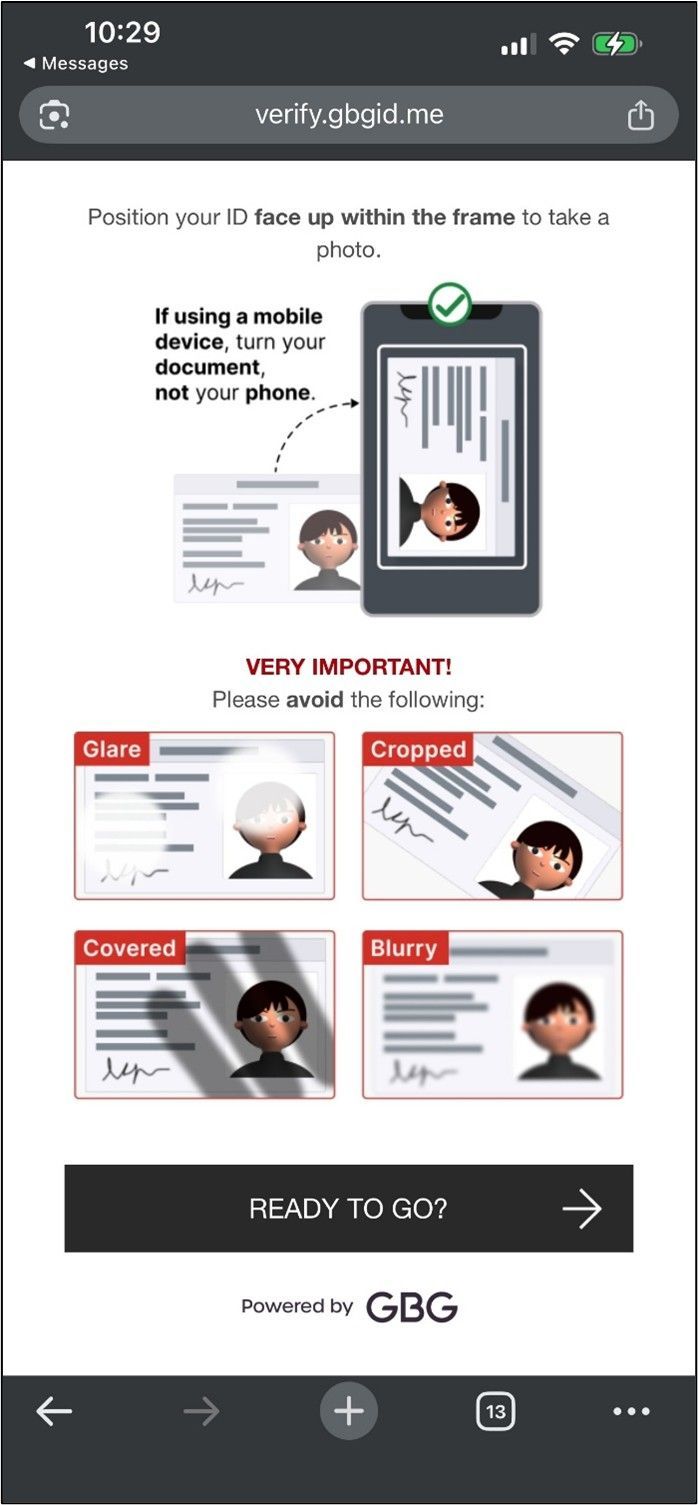
Instructions will appear guiding you on how to take the best photo
If using a driver’s licence, tap on the state where your licence was issued
Instructions will appear guiding you on how to take the best photo of your ID
The app will check to make sure your device is compatible with the process
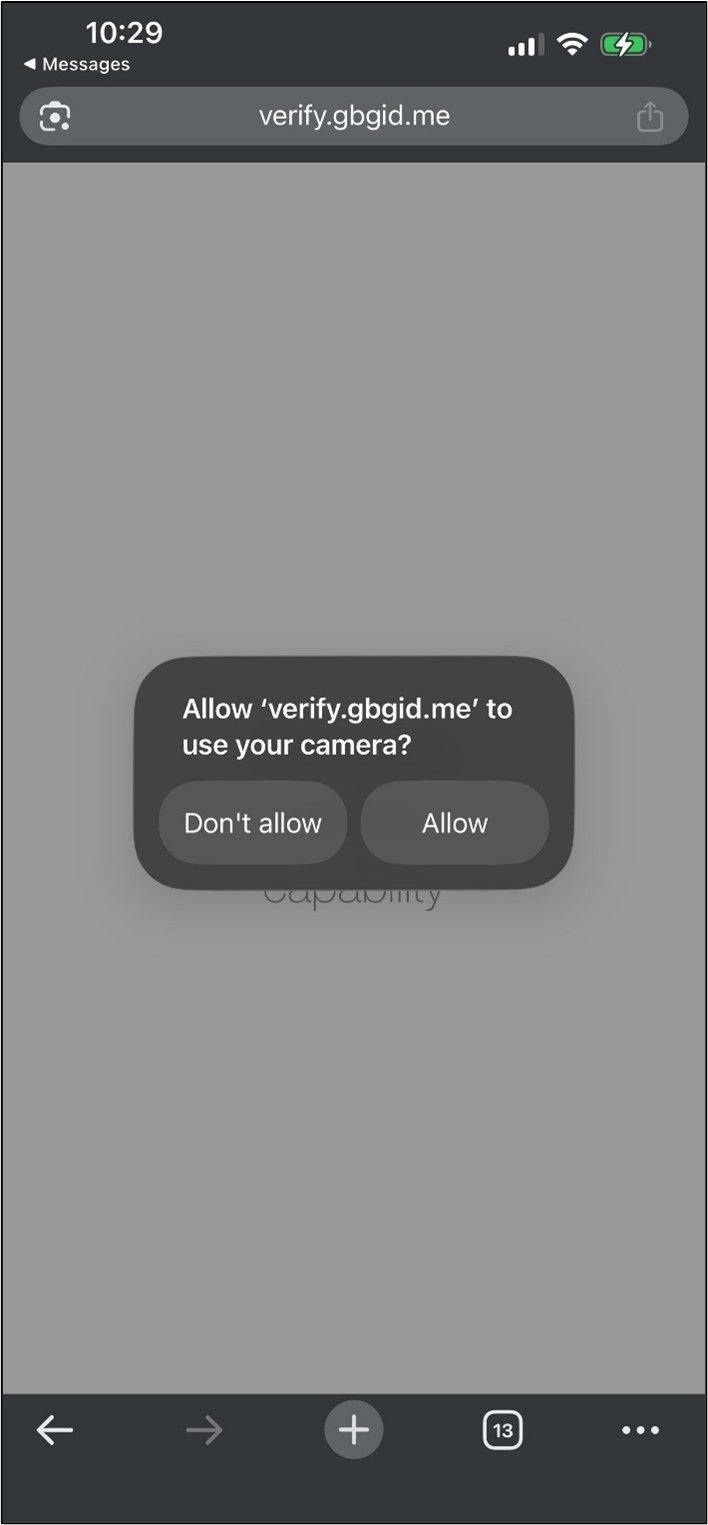
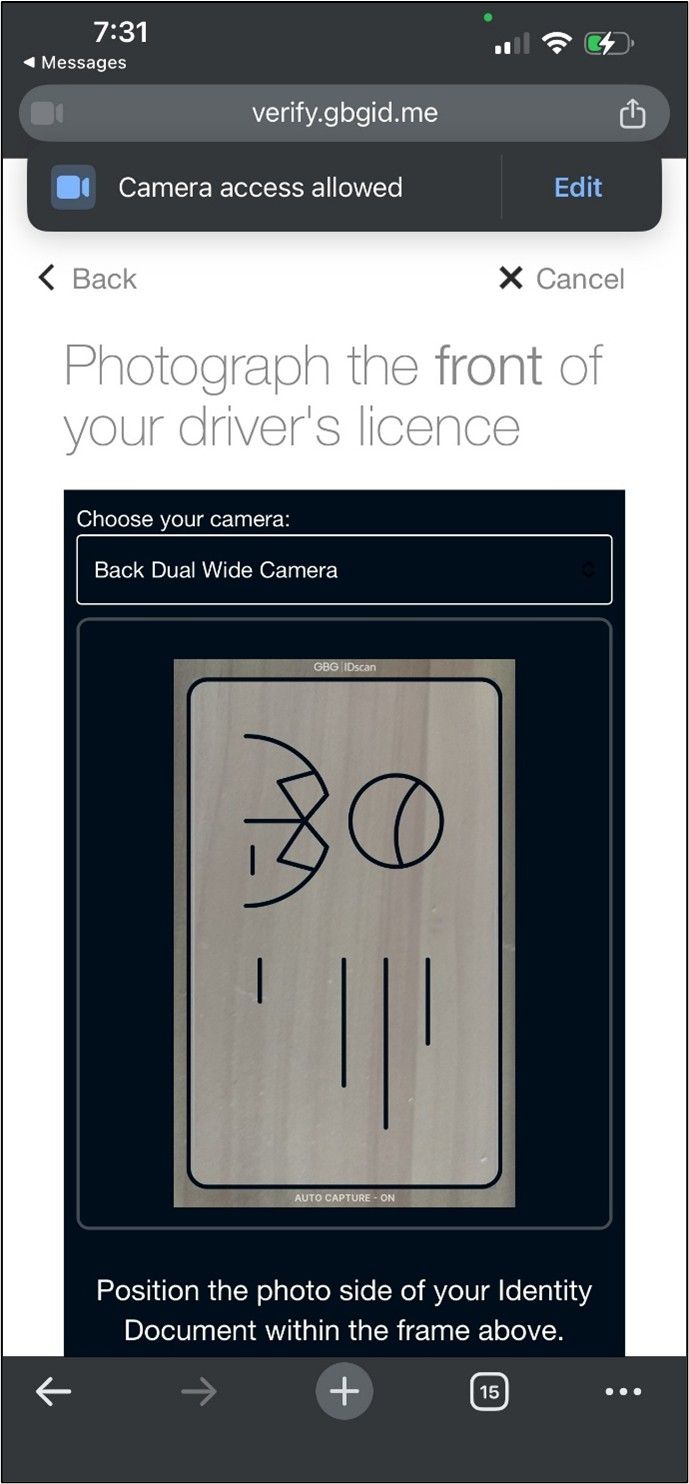
Touch the screen to allow camera access
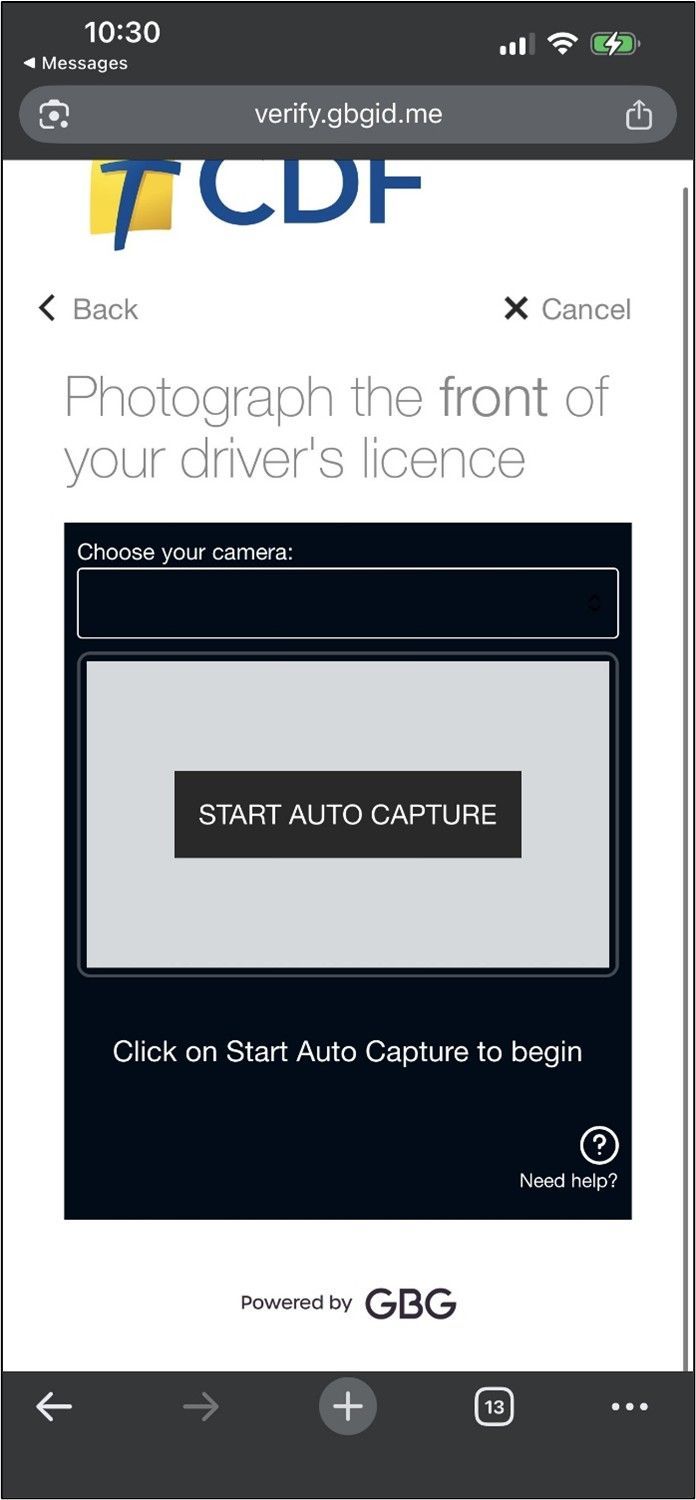
Click on START AUTO CAPTURE to move to the next screen
Align your identity document with the frame which appears on screen
Once the image is aligned and clear, the app will automatically capture the image
If the image is clear – select use this photo
If the image is not clear - you can choose to
retake it
Tip
Having a clean camera lens helps avoid blurry and unclear images
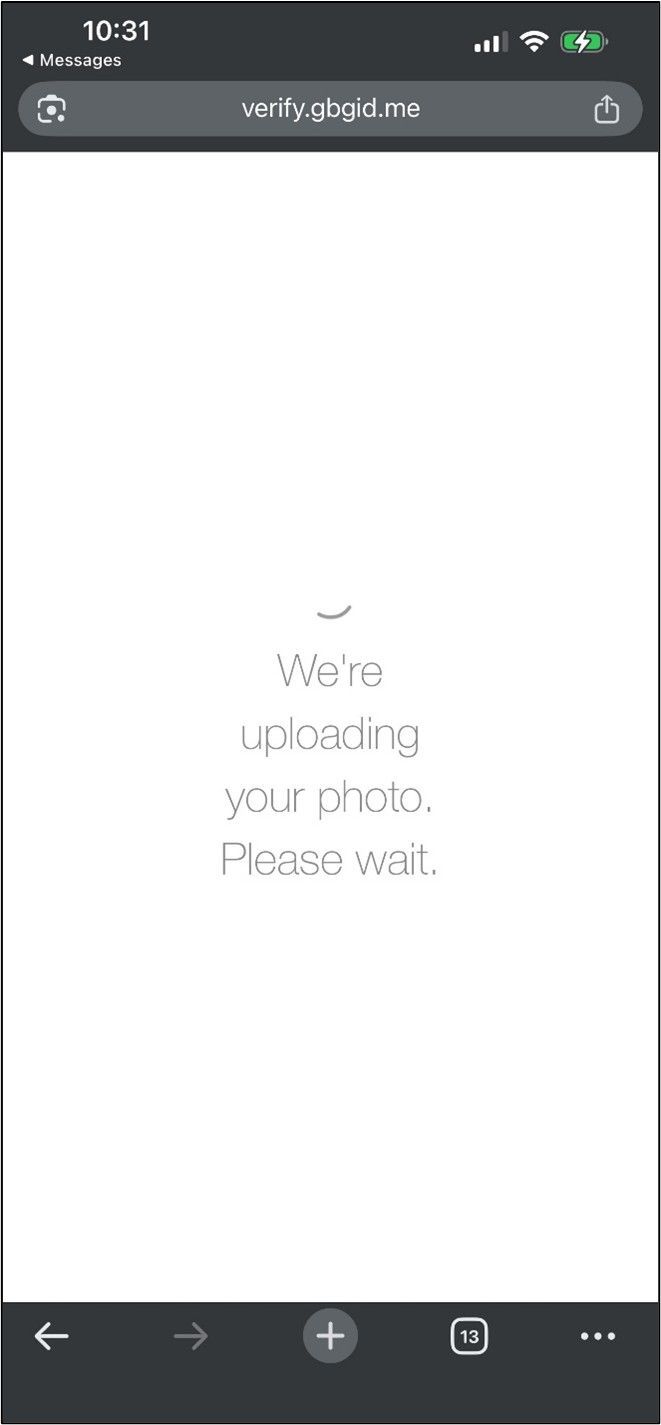
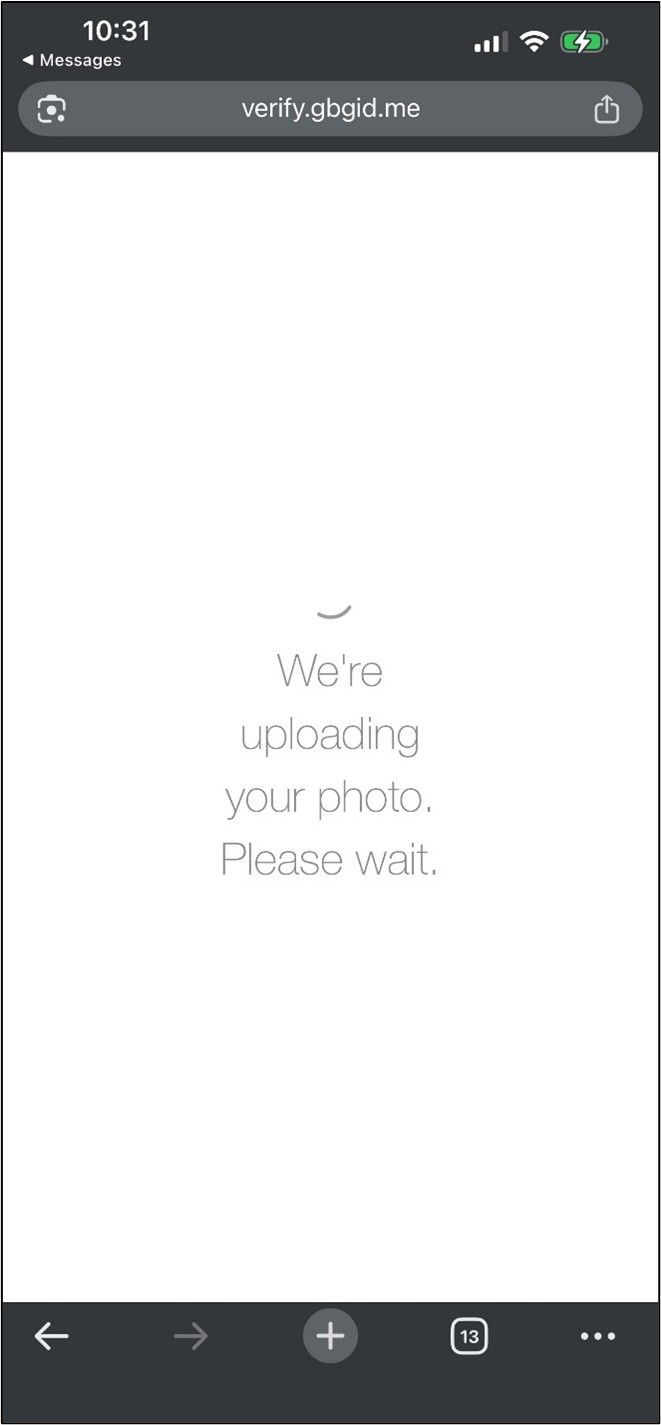
The app will upload your photo
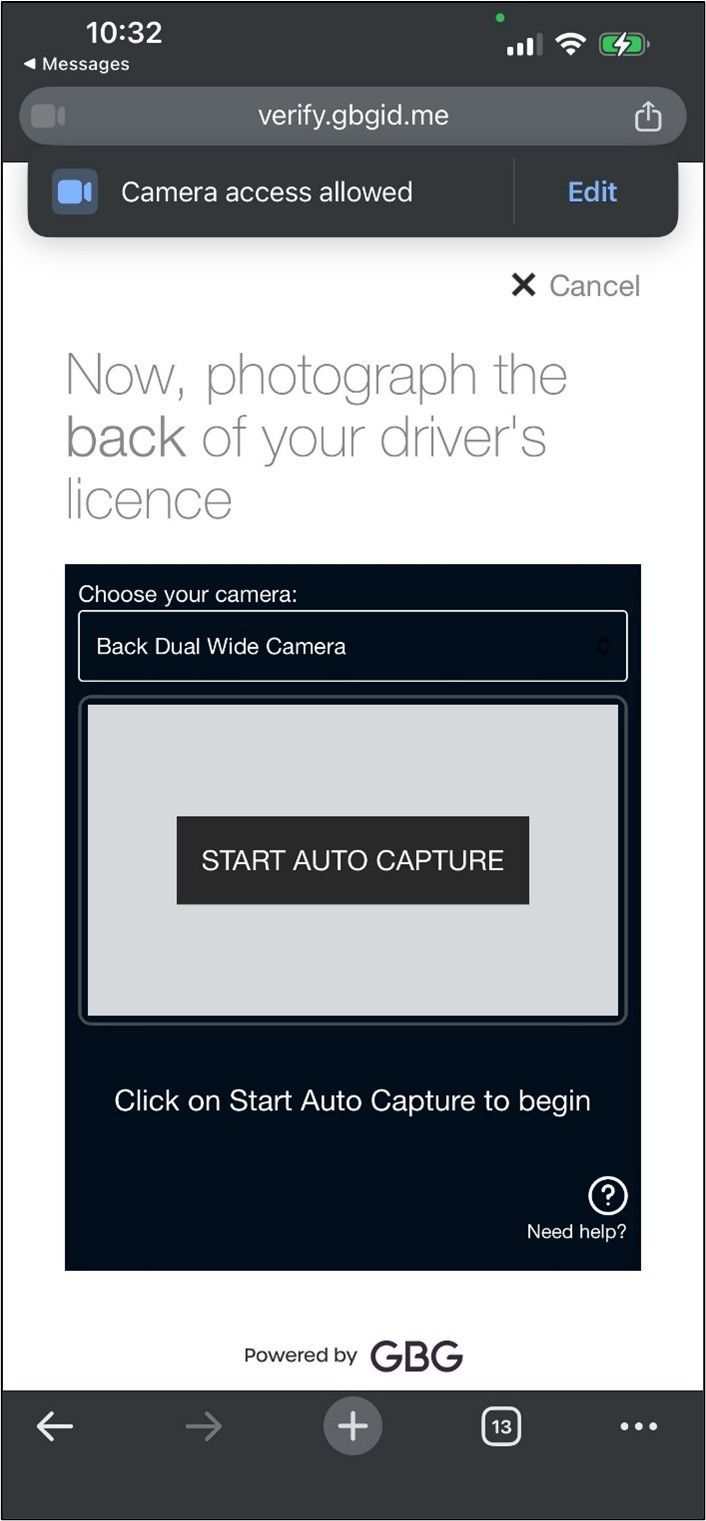
If a second image is required – for example using a driver’s licence will require you to take a photo of the back of the driver’s licence, the app will prompt you to capture the photo
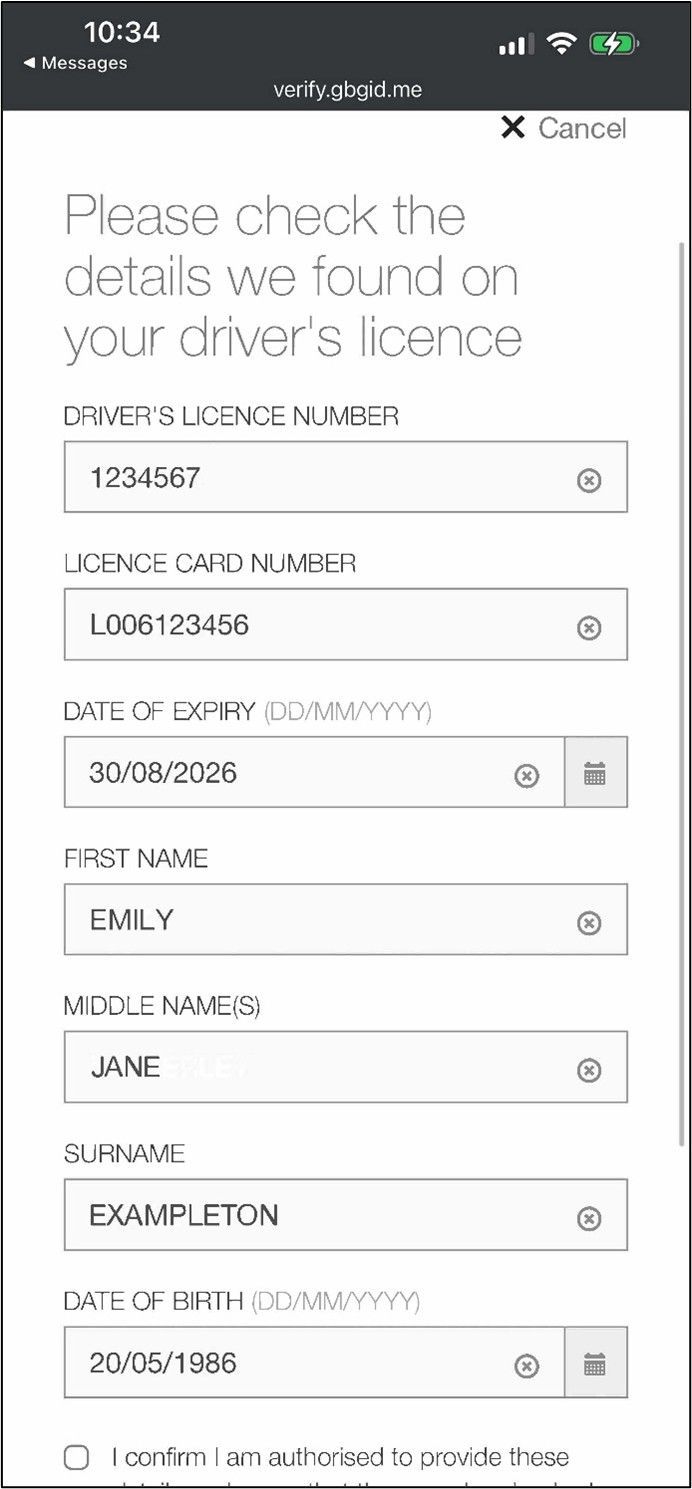
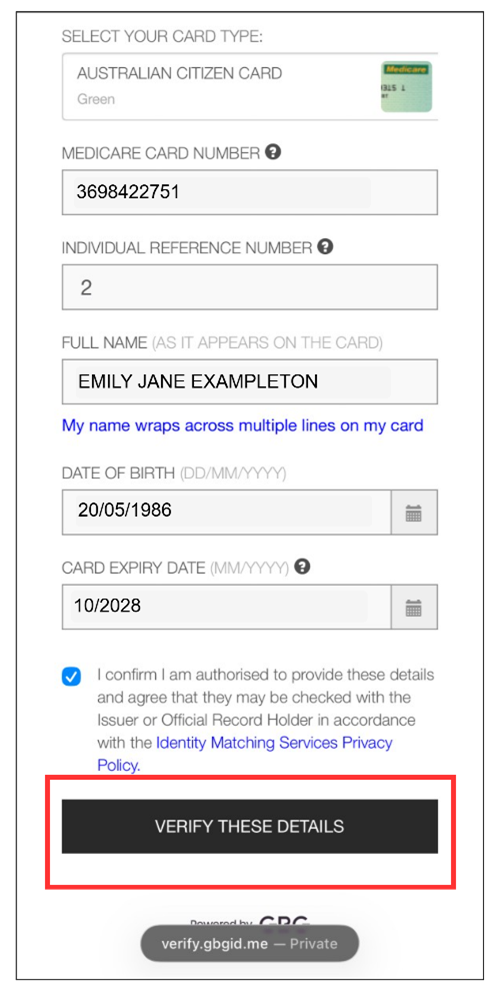
Take a moment to review the information displayed on screen against the information on your ID document
If any information is incorrect, please tap on the field and amend the information as required
Tip
Documents such as driver’s licenses may contain important information (such as the card number found on the back of most licenses) in very small text which the photo may not capture, you will need to enter these details if they aren’t captured correctly.
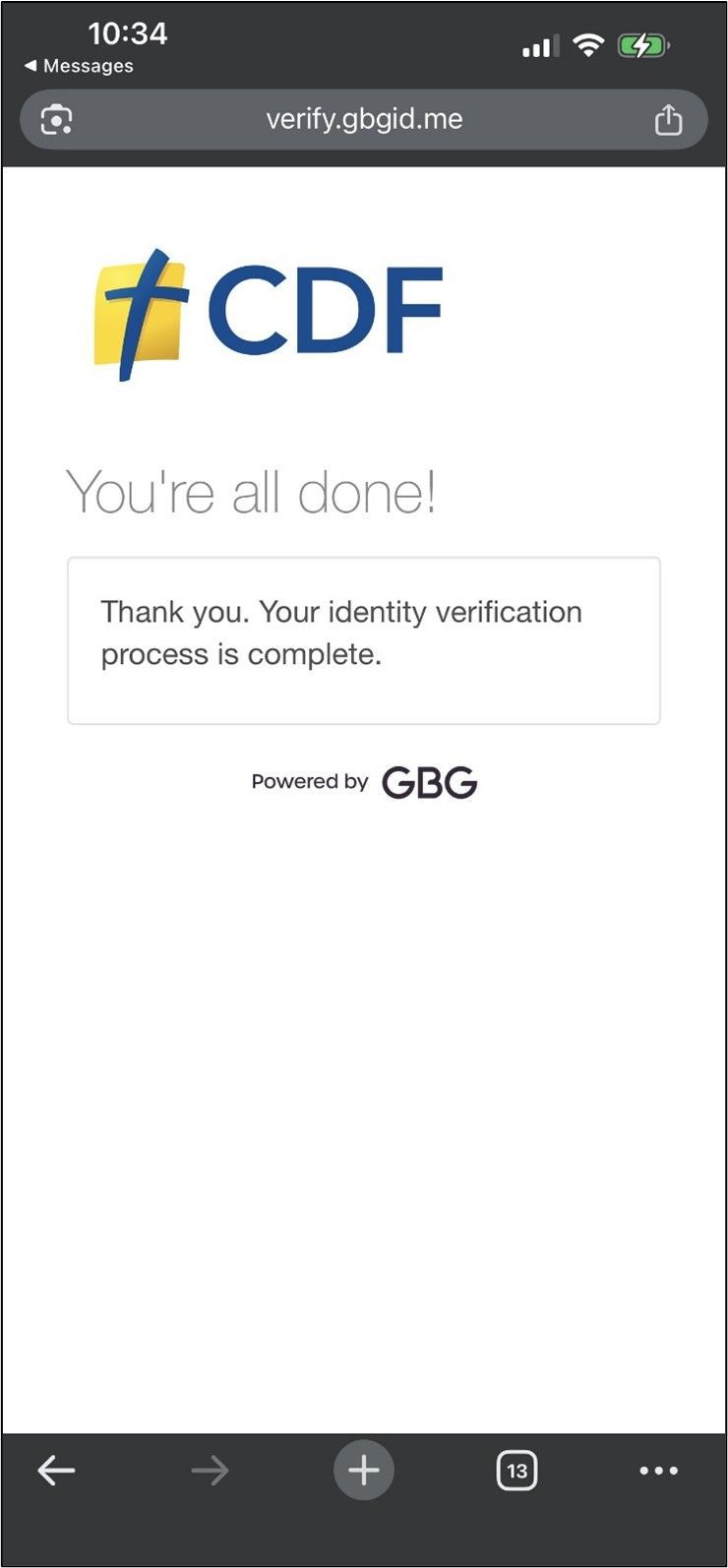
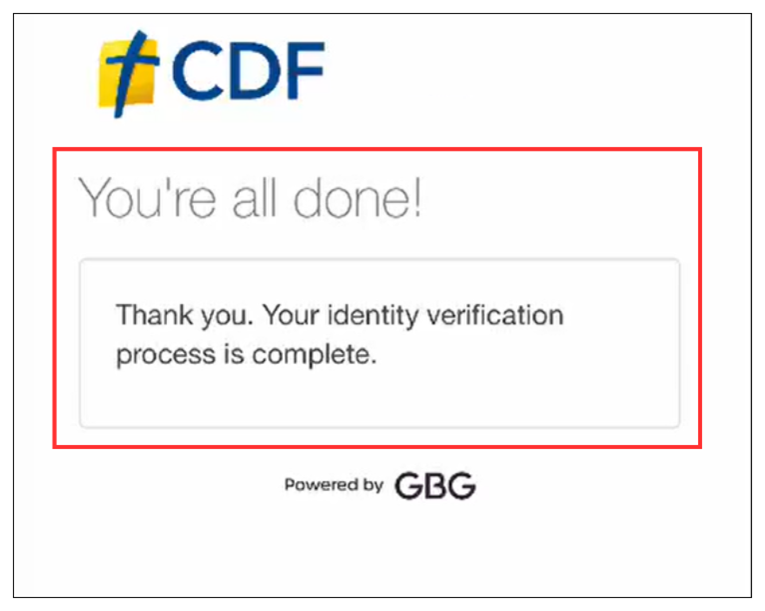
Once you have entered all required identification information you’ll see this screen. You have now finished electronic verification of your identity.
Touch the type of photo ID you want to use
Instructions will appear guiding you on how to take the best photo
If using a driver’s licence, tap on the state where your licence was issued
Instructions will appear guiding you on how to take the best photo of your ID
The app will check to make sure your device is compatible with the process
Touch the screen to allow camera access
Click on START AUTO CAPTURE to move to the next screen
Align your identity document with the frame which appears on screen
Once the image is aligned and clear, the app will automatically capture the image
If the image is clear – select use this photo
If the image is not clear - you can choose to
retake it
Tip
Having a clean camera lens helps avoid blurry and unclear images
The app will upload your photo
If a second image is required – for example using a driver’s licence will require you to take a photo of the back of the driver’s licence, the app will prompt you to capture the photo
Take a moment to review the information displayed on screen against the information on your ID document
If any information is incorrect, please tap on the field and amend the information as required
Tip
Documents such as driver’s licenses may contain important information (such as the card number found on the back of most licenses) in very small text which the photo may not capture, you will need to enter these details if they aren’t captured correctly.
Once you have entered all required identification information you’ll see this screen. You have now finished electronic verification of your identity.